Reporting, on demand PDFs and automatic reports
The two PDFs you download from a DR over the period you choose, and the reports Sefthy sends to the partner on its own, with your brand on them.
Reports come in two kinds. The ones you generate on a DR when you need them, for a meeting with the customer say, and the ones that land in the partner mailbox on their own. What changes is the moment and the scope, not the data.
The on demand PDFs
From a DR page you download two documents over the period you choose, backup outcomes and restore tests.
Anteprima video temporaneamente non disponibile.
Apri il file direttamente →- Open the DR page and click the three dots menu at the top right, then Reports.
- In the Period reports window pick the dates. The maximum period is 92 days, beyond that the Console tells you and does not start.
- If you configured a brand and a colour, the Generate with your own brand switch is already on. Turn it off if you want the Sefthy version.
- Press Generate report and wait a moment. The documents are prepared in the background and the window refreshes on its own.
- Download Backup report and Disaster Recovery report. With Pick another period you run it again on different dates without closing the window.
The backup report tells the story of the period, how reliable it was, the outcome day by day, the monthly summary and the problems that keep coming back, each with what to do about it. The Disaster Recovery report lists the restore tests of the period with the snapshot restored, the visual check, the network check and the outcome, and opens up the ones that did not pass.
The second PDF only exists where the automatic test is included, so on the Sefthy and Sefthy PRO plans. On the other plans you only get the backup report. If no test was run in the period you picked, the window says so instead of handing you an empty document.
You do not need to be enabled for this. Anyone who can open the DR page can generate its reports.
The automatic email reports
Sefthy sends the partner two digests, without you having to ask every time.
- Daily backup report, early every morning. It covers the last 24 hours across all your customer DRs, counts the backups that succeeded, that raised a warning, that failed and that never ran, and for each failure it says which family of problem it belongs to and what is worth doing.
- Weekly DR report, once a week, on Wednesday morning. It carries the latest restore test outcome of the DRs under automatic test, with the run of consecutive tests that went well.
The body of the email holds the overview and the cases to review, the full document is in the attached PDF.
Putting your brand on them
The PDFs can come out with your logo and your colour instead of the Sefthy ones. You set them once in your Profile, in the White-label reports card, by uploading a PNG with a transparent background and picking the shade. It applies to all four documents, the two automatic ones and the two on demand. The emails you receive stay Sefthy, because the brand is there for you to pass the document on to the customer.
Leaving the list
The reports go to every partner user in your company. Whoever does not want them opts out alone.
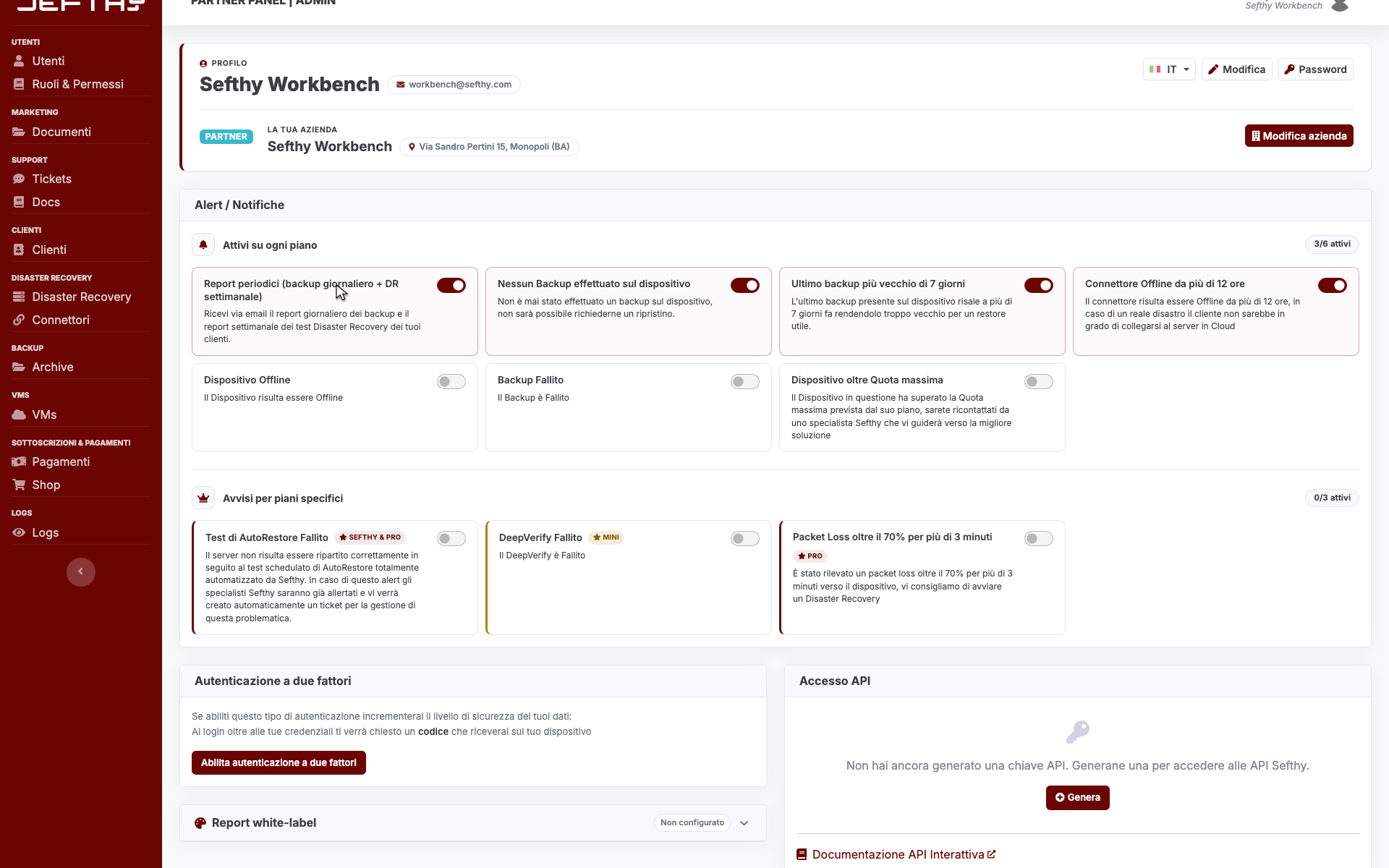
- Open your Profile and scroll down to the Alert / Notifications card.
- The first row is Periodic reports (daily backup + weekly DR).
- Turn the switch off. It only applies to your account, your colleagues keep receiving them.
Turn it back on and you are in the list again from the next send.