Remote USB, on-site USB devices on the cloud VM
Digital signing tokens, licence dongles and other USB devices plugged into the on-site connector, used by the DR VM in the cloud as if they were attached locally. Requirements, enabling from the Console, usage and disabling.
After a cloud restore the server runs in the Sefthy cloud, while the USB devices it depends on stay on site: digital signing tokens, licence dongles for business software, smart card readers. With Remote USB you plug these devices into the on-site connector and the DR VM uses them as if they were attached to one of its own USB ports.
Remote USB is enabled from the Console, per VM. Sefthy configures the USB service on the connector and, through the Sefthy Agent, installs on the VM the client that makes the devices available. No restart is required.
Anteprima video temporaneamente non disponibile.
Apri il file direttamente →Requirements
When you enable Remote USB, the Console automatically verifies the following requirements.
- Sefthy hardware connector associated with the VM.
- Connector online, running software version 1.1.2 or later. The connector updates automatically.
- VM routed through the connector. Enabling is not allowed while the VM is routed through the Emergency VPN.
- Sefthy Agent installed and reachable on the VM, which means the VM must be powered on. The agent updates itself to the required version.
- VM operating system: Windows 10, Windows 11 or Windows Server 2016 and later.
Network
The connector’s USB service listens on the IP address of the connector’s WAN interface. Two conditions depend on the site network and are not managed by Sefthy.
- The server network must reach the connector’s WAN address.
- The address must remain stable over time. Assign a static IP from the connector configuration or a DHCP reservation on the router.
If the VM is on a different VLAN from the connector, Remote USB can still be enabled as long as the site router routes traffic to the connector. In this case the Console shows a warning in the checks without blocking the activation.
1. Open the Remote USB card
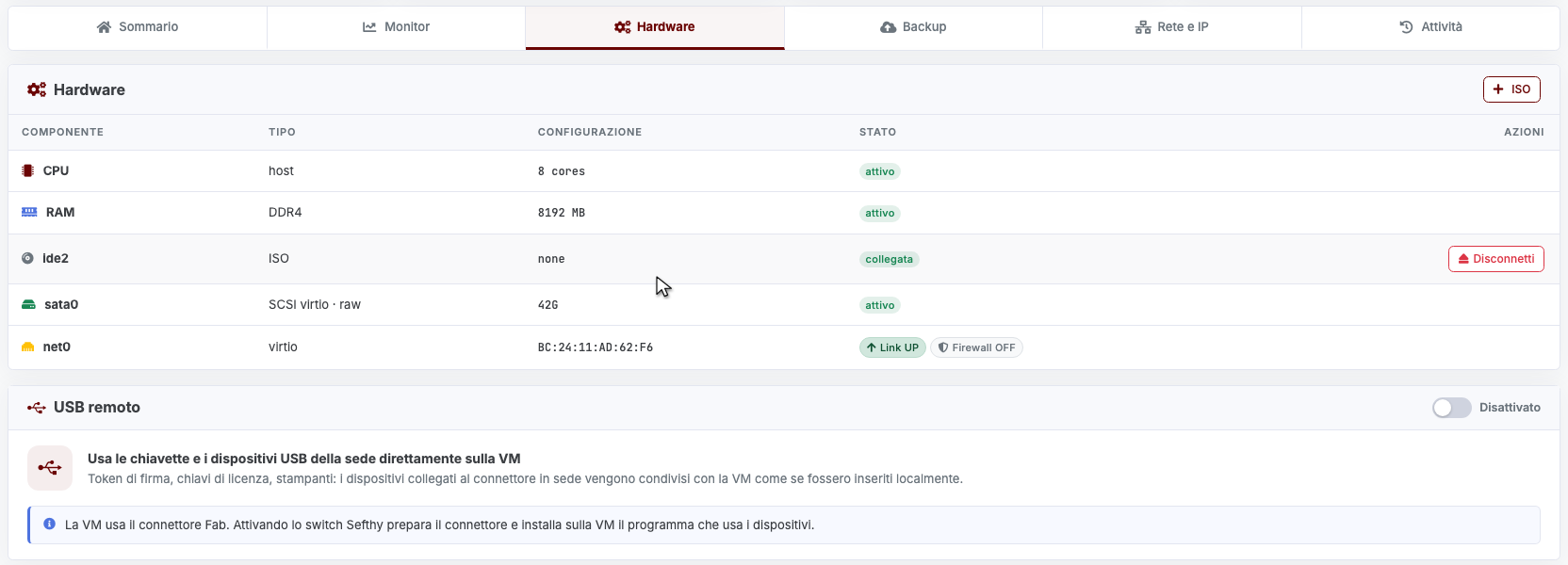
Open the VM in the Console and go to the Hardware tab. The Remote USB card is below the components table.
If the card is not visible, your user lacks the Remote USB permission. The account administrator grants it from team management, see Team users, roles and permissions.
2. Enable Remote USB
- Turn on the switch on the Remote USB card.
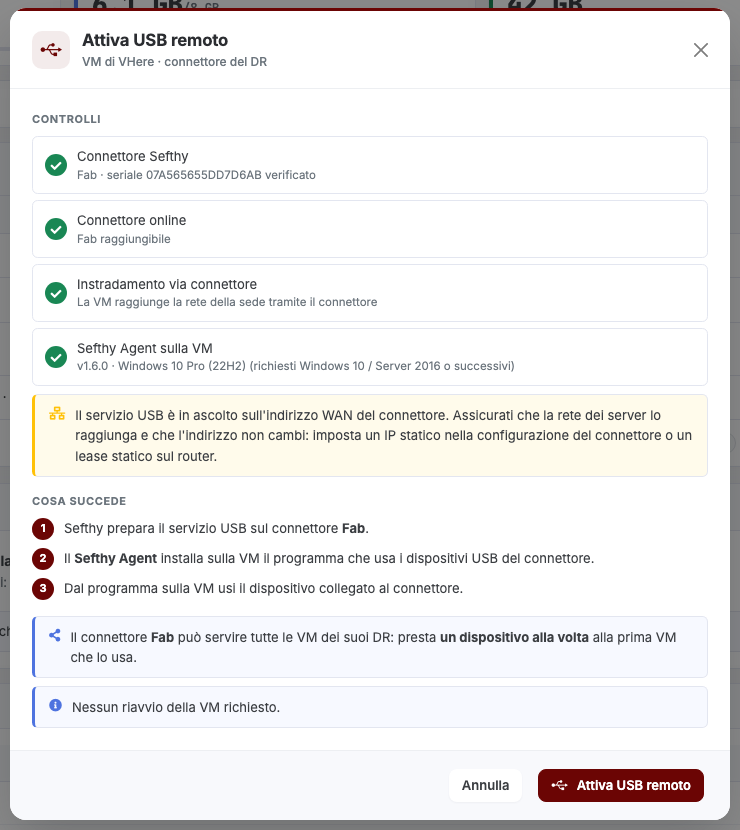
- The Enable Remote USB window opens with the Checks section. If all checks pass, the What happens section summarises the three steps Sefthy will perform.
- Click Enable Remote USB.
The card shows the progress of the three steps: configuration of the USB service on the connector, installation of the client on the VM, and connection of the VM to the connector. The operation continues in the background and the card status updates automatically. The VM does not need to be restarted.
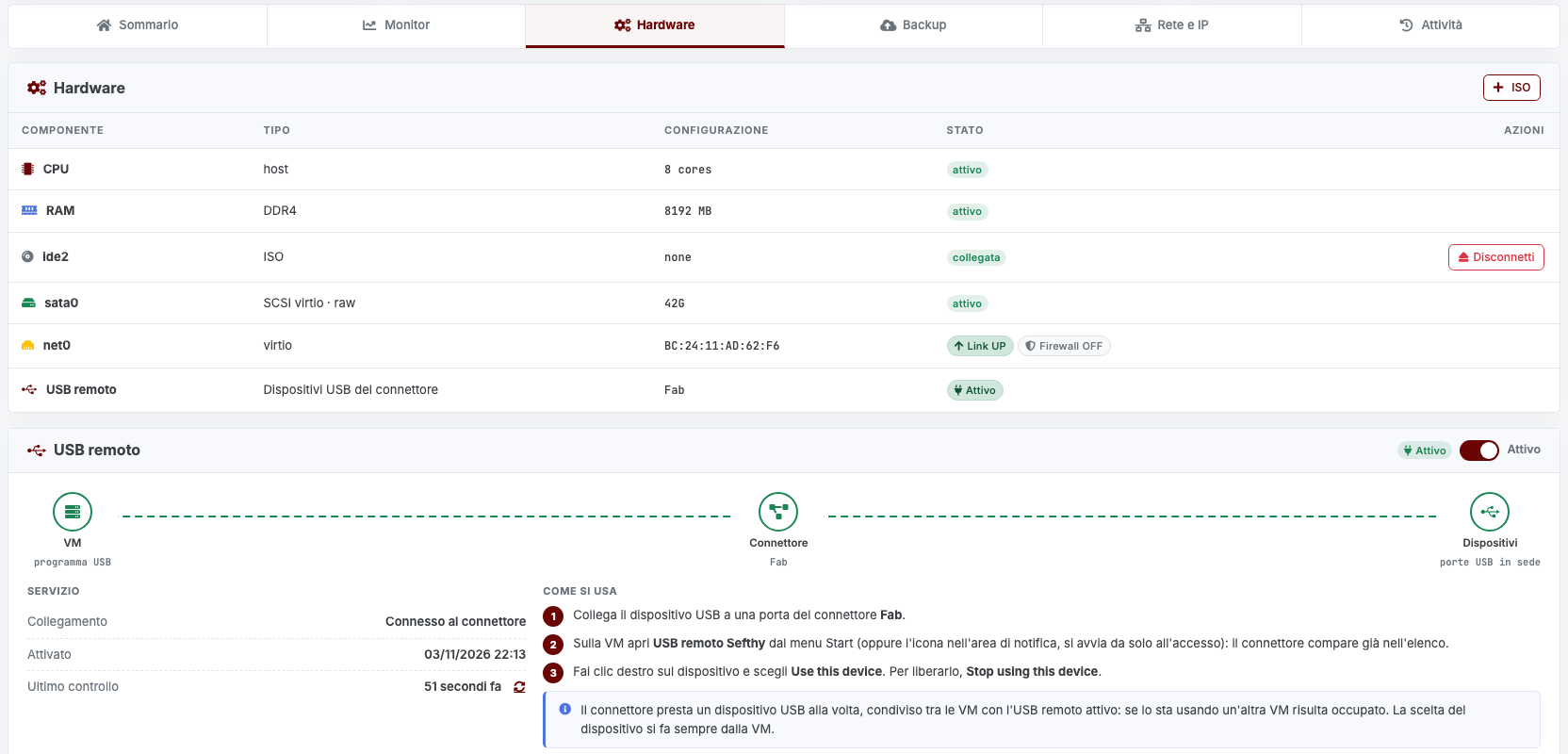
When the card reaches the Active state, the Remote USB row appears in the Hardware table with the name of the connector that provides the devices.
3. Use the devices from the VM
Devices are used from the VM, not from the Console.
- Plug the USB device into a port of the on-site connector.
- On the VM, open Sefthy Remote USB from the Start menu. The client starts automatically when a user signs in and is also available from its icon in the notification area. The connector is already listed.
- Right-click the device and choose Use this device. When you are done, choose Stop using this device to release it.
Windows detects the device as if it were attached locally and installs its driver as it would for any USB peripheral.
On the active card, the Service panel shows whether the VM is Connected to the connector, when Remote USB was enabled and the time of the last status check. The icon next to the last check requests an immediate update from the VM, which arrives within a few minutes.
Several VMs on the same connector
A connector can serve all the VMs of the DRs it is associated with. Remote USB is enabled on each VM separately, while the USB service on the connector is configured only once, at the first activation.
Each device is assigned to one VM at a time, the first one that requests it. Until that VM releases it, the device shows as busy on the others. Assignment is always managed from the client on the VM.
Emergency VPN and offline connector
If you route the VM through the Emergency VPN while Remote USB is enabled, the configuration is left intact. The connector’s devices are not reachable while the VM stays on the VPN, and the card reports it. Once routing is set back to Connector, Remote USB resumes automatically.
The same applies when the connector goes offline: the card warns that the devices are not reachable and the service resumes when the connector is back online. In this case, check the connector’s power and network on site.
Disabling
Turn off the switch on the card and confirm with Disable. The confirmation window summarises the operations performed.
- The client is removed from the VM and any device in use is detached.
- If other VMs use the same connector, the USB service on the connector stays active for them. If this was the last VM, the service is removed from the connector as well.
No restart is required. If a device was still in use when Remote USB was disabled, the removal of its driver completes at the next VM restart, which Sefthy never performs automatically.
Anteprima video temporaneamente non disponibile.
Apri il file direttamente →Troubleshooting
If a check fails, the switch stays off and the card shows Remote USB cannot be enabled with the reason. The most common cases:
| Message | What to do |
|---|---|
| Not a Sefthy hardware connector | The connector associated with the VM does not support Remote USB. The feature requires a Sefthy hardware connector. |
| The connector is offline | Check the connector’s power and network on site. |
| Connector version older than 1.1.2 | The connector updates automatically. Retry once the update is complete. |
| The VM is routed through the Emergency VPN | Set the VM routing back to Connector. |
| Sefthy Agent not installed or not reachable | Install the Sefthy Agent on the VM, or power on the VM if it is off. |
| Operating system not supported | Windows 10, Windows 11 or Windows Server 2016 and later is required. |
Once the problem is fixed, click Retry on the card.
If the activation starts but stops midway, the card switches to the Error state with the details. From there you can choose Retry or Cancel activation. If a disabling fails because the VM does not respond, Disable without removing from the VM is also available: Remote USB is disabled in the Console and the client stays installed on the VM.

If the problem persists, open a ticket specifying the VM and the connector.