Backup Speed limit configuration
Cap the bandwidth backups use for the whole customer or for a single DR, Workstation or Archive, with one value during business hours and one outside, starting from the connector speedtest.
Uploading backups can saturate the customer line exactly when it needs to be free. The speed limit lets you decide how much upload bandwidth they can use, with one value for business hours and a more generous one for nights and weekends.
The limit is set at one of two levels, never both at once.
- On the customer. A single cap on the office public IP, shared by all of its DRs, Workstations and Archives together. Two servers backing up at the same time never go past the value you chose.
- On a single DR, Workstation or Archive. Each one has its own limit and the limits add up on the line.
While the customer limit is on, the individual limits do not apply and cannot be changed.
Limit on the customer
Open Customers, go into the customer page and look for the Backup bandwidth limit card. It is on both the administrator and the partner customer page.
Anteprima video temporaneamente non disponibile.
Apri il file direttamente →The two values
- During business hours applies to every DR, Workstation and Archive of the customer, no exception.
- Outside business hours applies to nights, breaks and weekends.
Both are whole Mbit/s. With 0 in a field that time window has no limit.
Speedtest from the connector
The Speedtest from the connector row opens with a click and shows the customer connector the test runs on. Run speedtest measures the upload to the Sefthy cloud and the Console suggests 20% of the bandwidth during business hours and 60% outside. With 100 Mbit/s measured that is 20 and 60. Apply to limits copies the suggestion into the two fields, then you still click Save.
Without a customer connector the test is not available and you type the values yourself.
Business hours
The Standard hours are Monday to Friday, 08:00-13:00 and 14:00-18:00. With Custom you get one row per day.
- The switch turns the day on or off. A day that is off is all outside business hours.
- Each day takes up to two ranges in HH:MM format, with the end after the start.
- The bar next to it draws the ranges over the 24 hours.
- Copy Monday to every active day repeats the Monday hours.
Business hours belong to the customer and also decide the time window for the individual limits.
The status
Next to the switch a pill tells you what is happening right now.
- Business hours or Outside business hours with the Mbit/s applied at this moment. Hovering the pill shows the public IP it is applied on.
- Waiting for a public IP when the Console does not know the customer IP yet. It learns it from the Sefthy Agent or from the connector, and the limit starts as soon as one of them reports it.
- No limit applied when the value of the current time window is 0.
- Limit still applied when you turned it off but the network rule has not been removed yet. It goes away by itself on the first successful attempt.
The Console checks the limits again every minute, so the switch between time windows and any change of IP are applied on their own.
What changes on DRs, Workstations and Archives
With the customer limit on, the Backup Speed button shows the two customer values, for example 20 / 60, and takes you to the customer page. The tooltip reminds you that the limit is changed from there.
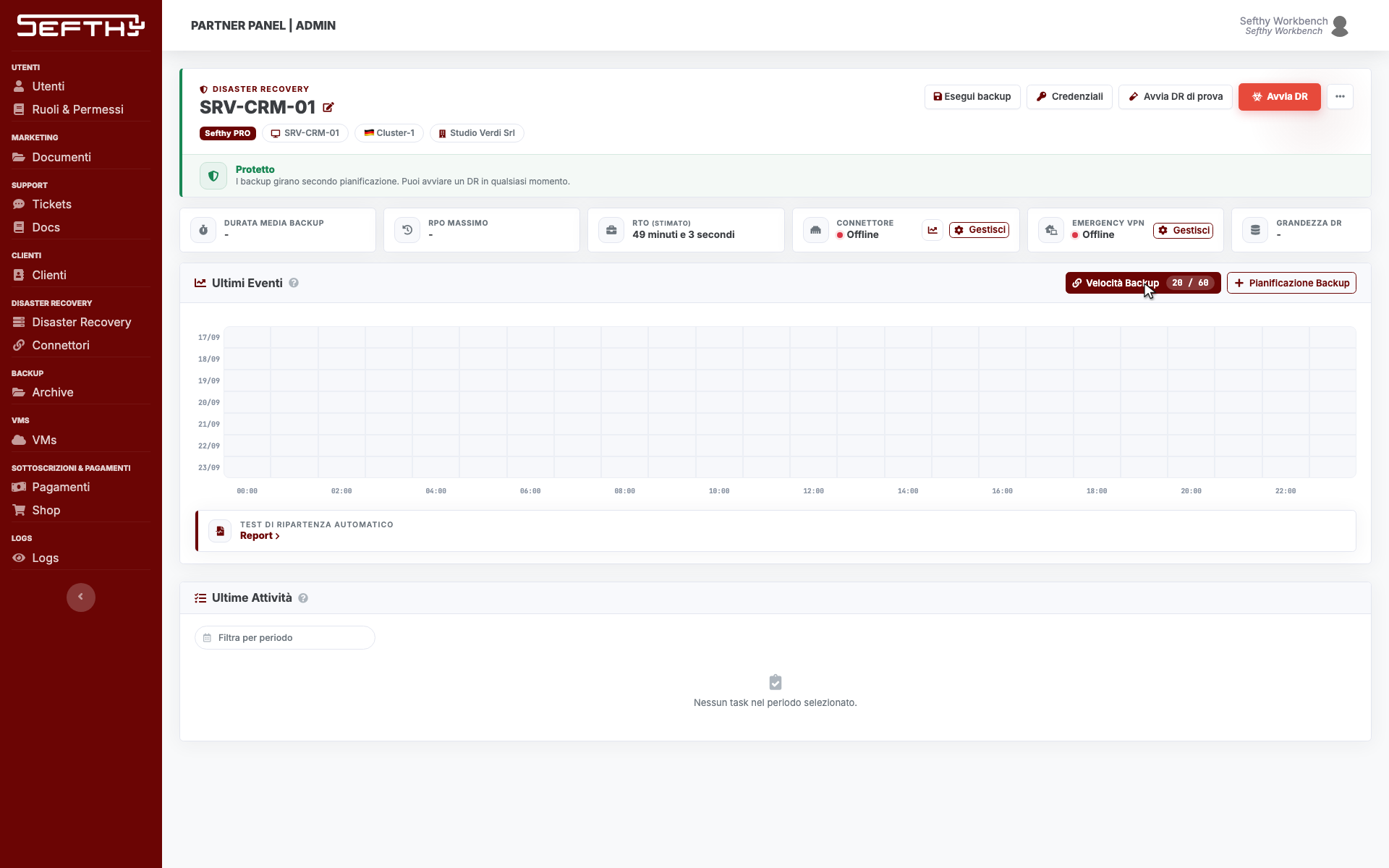
If there is also a local backup on an SMB share, the button opens the modal with the local limit only, because that traffic does not leave through the internet line.
A limit set before you turned on the customer one is not lost. When you turn the customer limit off, each one goes back to its previous value.
Limit on a single DR, Workstation or Archive
This applies when the customer has no shared limit. DRs, Workstations and Archives have the same modal.
- Open the DR, the Workstation or the Archive and scroll to the Latest Activities card.
- Click Backup Speed in the card header, next to Backup Schedules. The button shows the current values, or unlimited.
- The Edit Backup Speed modal opens.
Anteprima video temporaneamente non disponibile.
Apri il file direttamente →No limit or limit for this DR
At the top you choose between No limit, the backup uses all the available bandwidth, and Limit for this DR. With the second option the speedtest and the two fields show up.
- During business hours follows the customer business hours, the standard ones unless they were customised.
- Outside business hours covers the rest of the time. With 0 outside business hours there is no limit.
On a DR the speedtest runs from the attached connector and fills the two fields with 20% and 60% of the measured upload. Workstations and Archives have no speedtest, you type the values yourself. On an Archive the second option is called Limit for this Archive.
The local backup
Below you find Selected limit (Local backup), in Mbit/s, for backups going to the SMB share. It has a single value with no time windows, and 0 means no limit.
Click Confirm. The Console applies the value of the current time window right away and switches between the two values on its own when the hours change.